Tuesday, December 15, 2020

No module named imutils.pespective after pip installing

/python/Script/


 1) Install imutils

pip install imutils

2) If imutils is already installed, check the installation path.

Requirement already satisfied: imutils in /usr/local/lib/python3.5/dist-packages

3) When I ran python program, I ran into following error:

ImportError: No module named imutils.video

In my case, imutils was only installed under /usr/local/lib/python3.5/dist-packages path, once I copied this folder to /usr/local/lib/python2.7/dist-packages, it worked! Hope this is helpful.

Cannot find module cv2 when using OpenCV

/python/Script/


 First do run these commands inside Terminal/CMD:

conda update anaconda-navigator  
conda update navigator-updater  

Then the issue for the instruction below will be resolved

For windows if you have anaconda installed, you can simply do

pip install opencv-python

or

conda install -c https://conda.binstar.org/menpo opencv

if you are on linux you can do :

pip install opencv-python

or

conda install opencv 

Link1 Link2

For python3.5+ check these links : Link3 , Link4

Update:
if you use anaconda, you may simply use this as well (and hence don't need to add menpo channel):

conda install -c conda-forge opencv

Installing Numpy on Windows


  1. Open Windows command prompt with administrator privileges (quick method: Press the Windows key. Type "cmd". Right-click on the suggested "Command Prompt" and select "Run as Administrator)
  2. Navigate to the Python installation directory's Scripts folder using the "cd" (change directory) command. e.g. "cd C:\Program Files (x86)\PythonXX\Scripts"

This might be: C:\Users\\AppData\Local\Programs\Python\PythonXX\Scripts or C:\Program Files (x86)\PythonXX\Scripts (where XX represents the Python version number), depending on where it was installed. It may be easier to find the folder using Windows explorer, and then paste or type the address from the Explorer address bar into the command prompt.

  1. Enter the following command: "pip install numpy".

You should see something similar to the following text appear as the package is downloaded and installed.

Collecting numpy
  Downloading numpy-1.13.3-2-cp27-none-win32.whl (6.7MB)  
  100% |################################| 6.7MB 112kB/s
Installing collected packages: numpy
Successfully installed numpy-1.13.3

Monday, September 28, 2020

Tutorial: Rounded Rectangle or Square with Python Turtle

https://pythonturtle.academy/tutorial-round-rectangle-or-square-with-python-turtle/


In this tutorial we are going to show how to draw rectangles or squares with round corners.

Round Rectangle

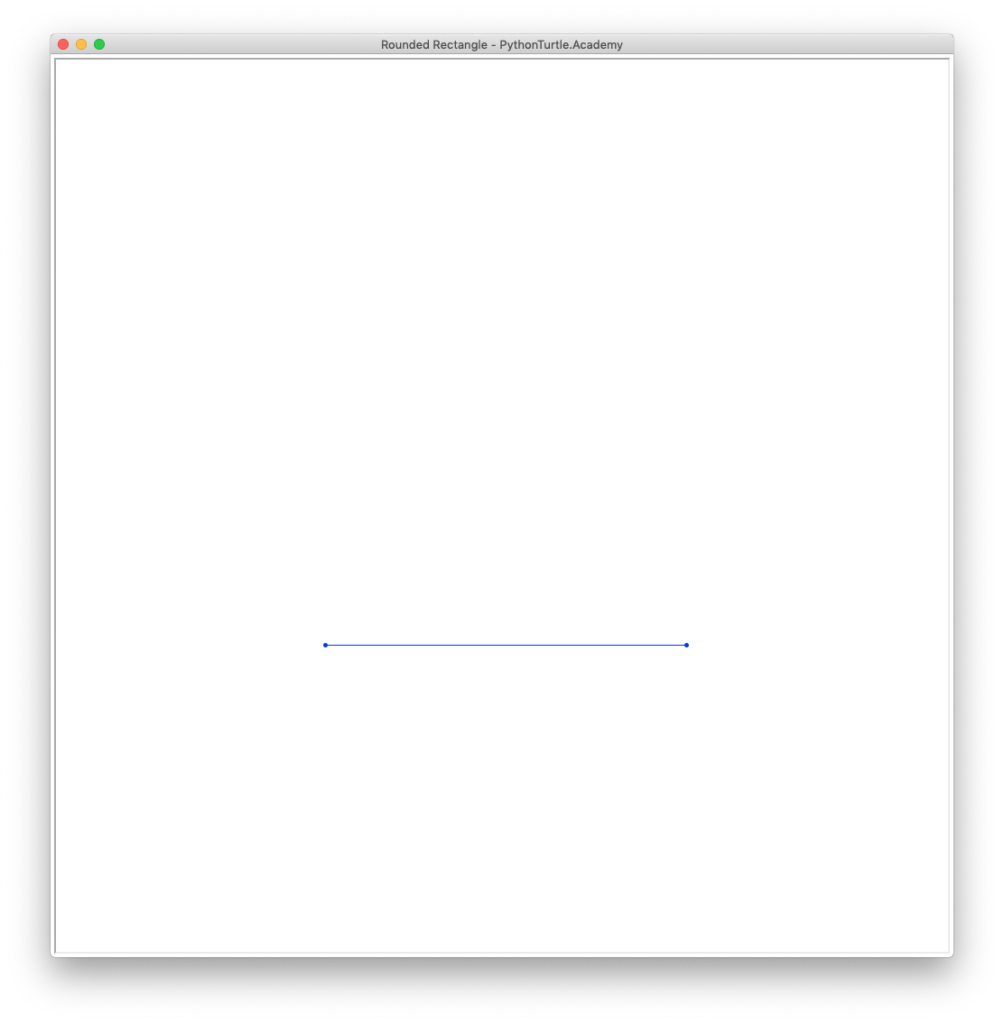
We will start by drawing the bottom straight-line with blue color. The following is the code snippet:

turtle.up()
turtle.goto(-200,-150)
turtle.color('blue')
turtle.down()
turtle.dot()
turtle.fd(400)
turtle.dot()

It should draw the following shape. The blue dots were drawn to show the starting and end points. They will be removed later.

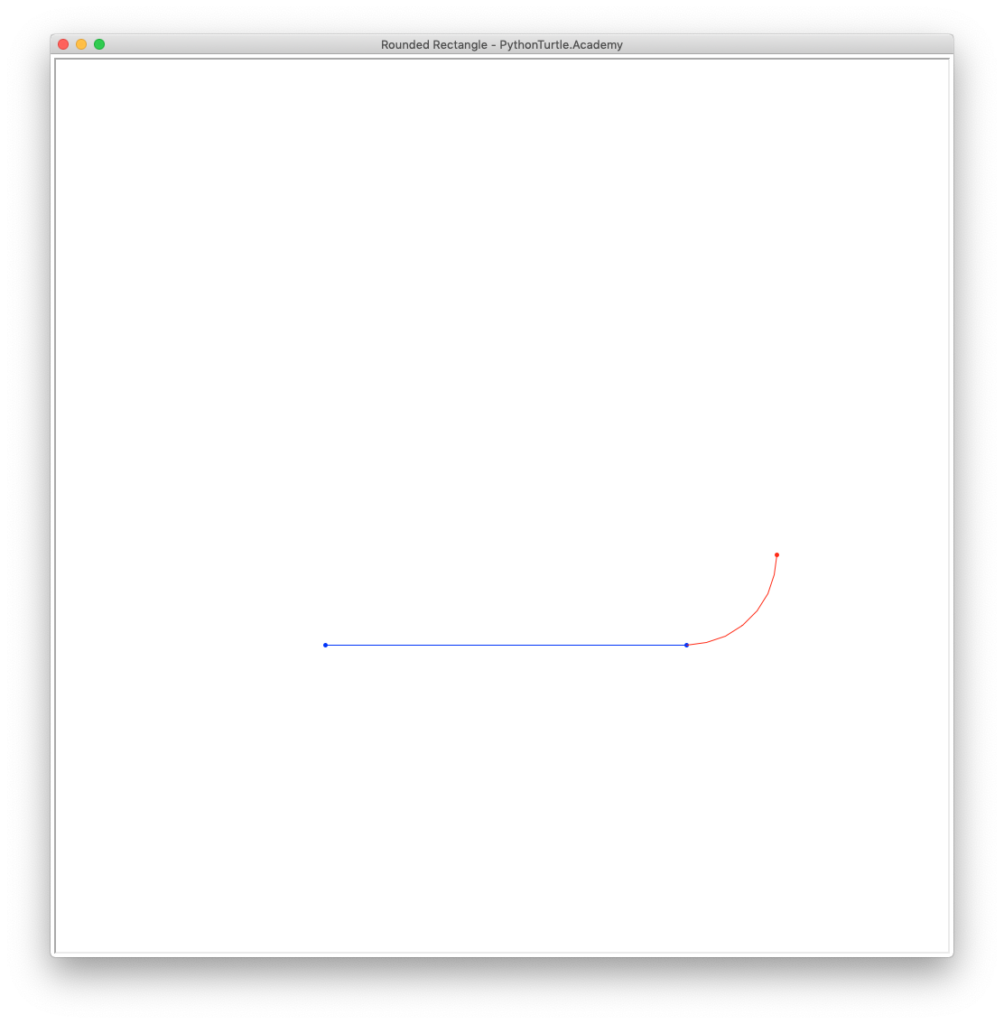
We are going to draw the round corners with 90 degree arc of a circle in red color. The radius of the arc can be any number. Smaller radius generates smaller round corners. The following is the code snippet for drawing the round corner:

turtle.up()
turtle.goto(-200,-150)
turtle.color('blue')
turtle.down()
turtle.dot()
turtle.fd(400)
turtle.dot()
turtle.color('red')
turtle.circle(100,90)
turtle.dot()

It should draw a shape like this:

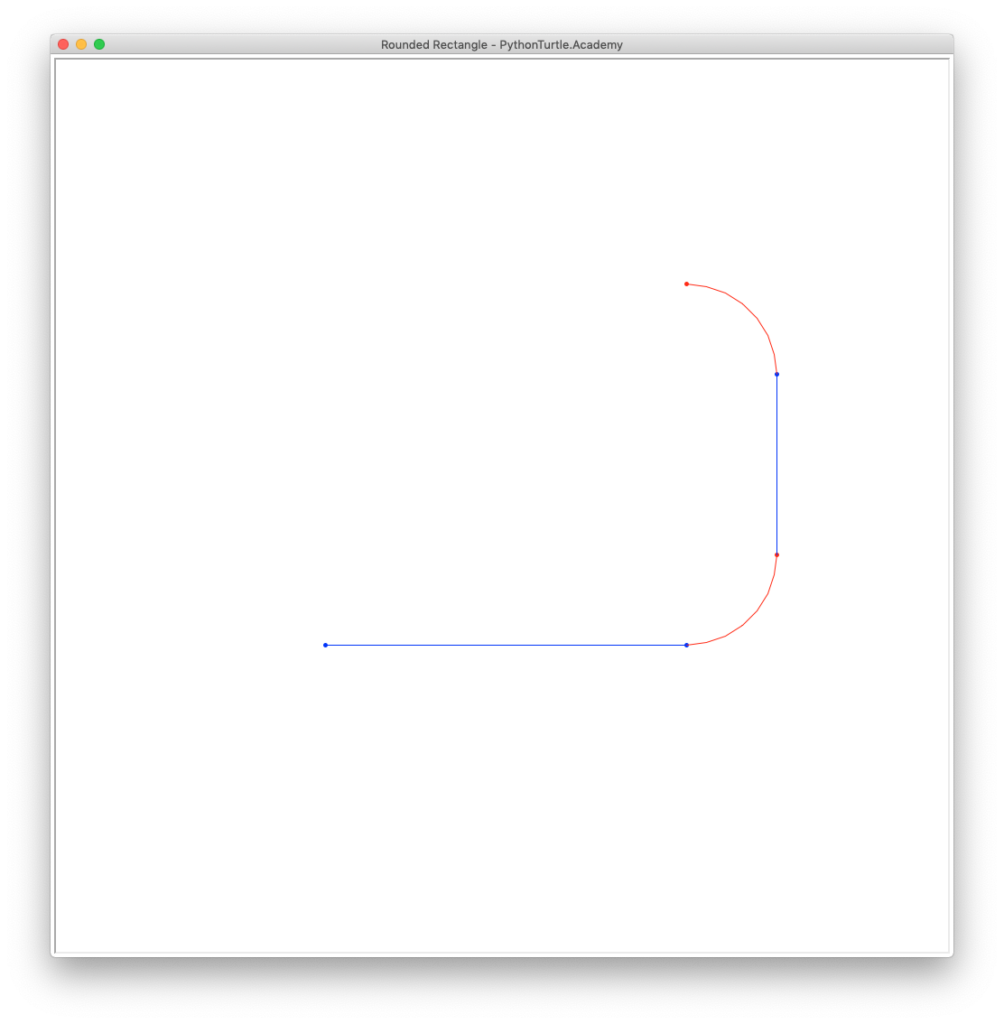
The next step will be easier. Just repeat the step above for the next side. The following is the code snippet:

turtle.up()
turtle.goto(-200,-150)
turtle.color('blue')
turtle.down()
turtle.dot()
turtle.fd(400)
turtle.dot()
turtle.color('red')
turtle.circle(100,90)
turtle.dot()
turtle.color('blue')
turtle.fd(200)
turtle.dot()
turtle.color('red')
turtle.circle(100,90)
turtle.dot()

It draws a shape like the following:

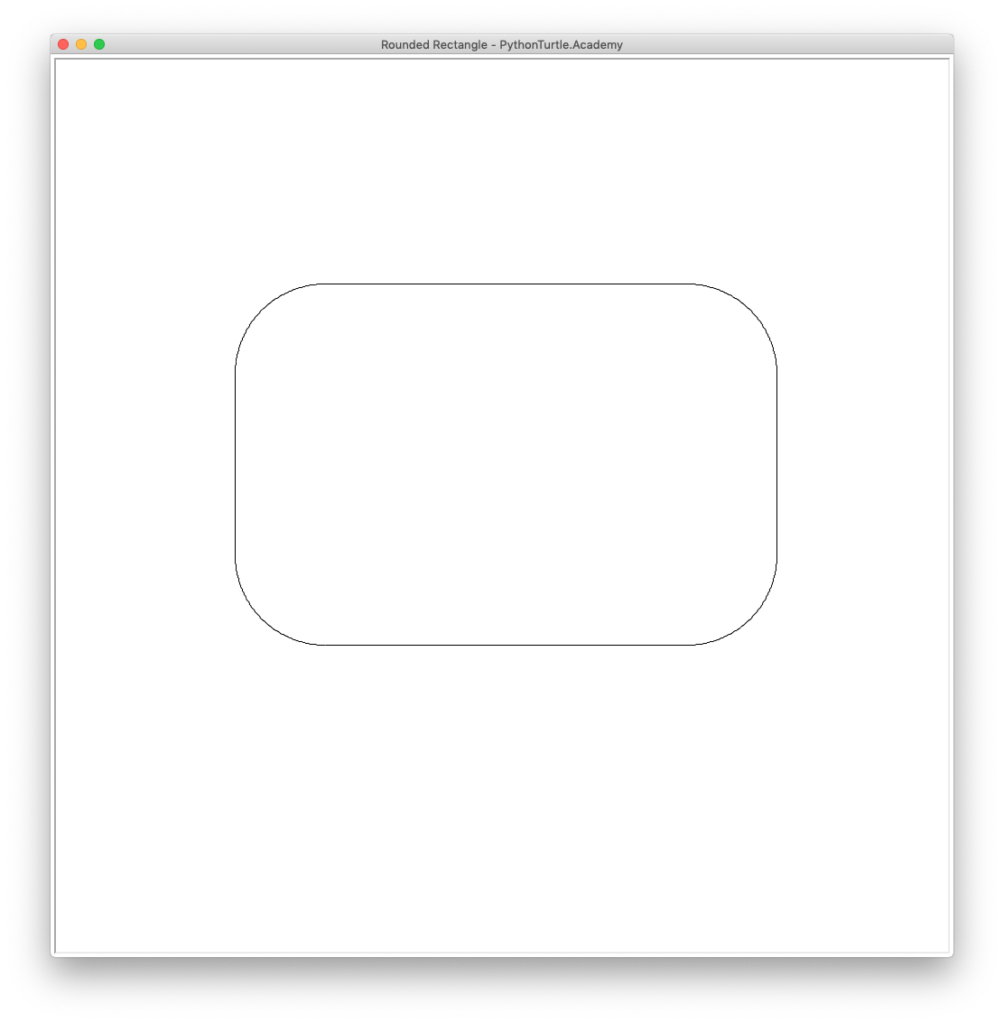
To finish the whole round rectangle, we just need to repeat the process one more time. The following is the complete code snippet with dots and colors removed:

turtle.up()
turtle.goto(-200,-150)
turtle.down()
for _ in range(2):
    turtle.fd(400)
    turtle.circle(100,90)
    turtle.fd(200)
    turtle.circle(100,90)

You may want to generalize this by creating a function that draws round rectangles with any corner size. The following is the complete code:

import turtle

turtle.speed(0)
turtle.hideturtle()
turtle.setup(1000,1000)
turtle.title('Rounded Rectangle - PythonTurtle.Academy')
turtle.speed(0)
turtle.up()
turtle.hideturtle()

def round_rectangle(center_x,center_y,width,height,cornersize):
    turtle.up()
    turtle.goto(center_x-width/2+cornersize,center_y-height/2)
    turtle.down()
    for _ in range(2):
        turtle.fd(width-2*cornersize)
        turtle.circle(cornersize,90)
        turtle.fd(height-2*cornersize)
        turtle.circle(cornersize,90)

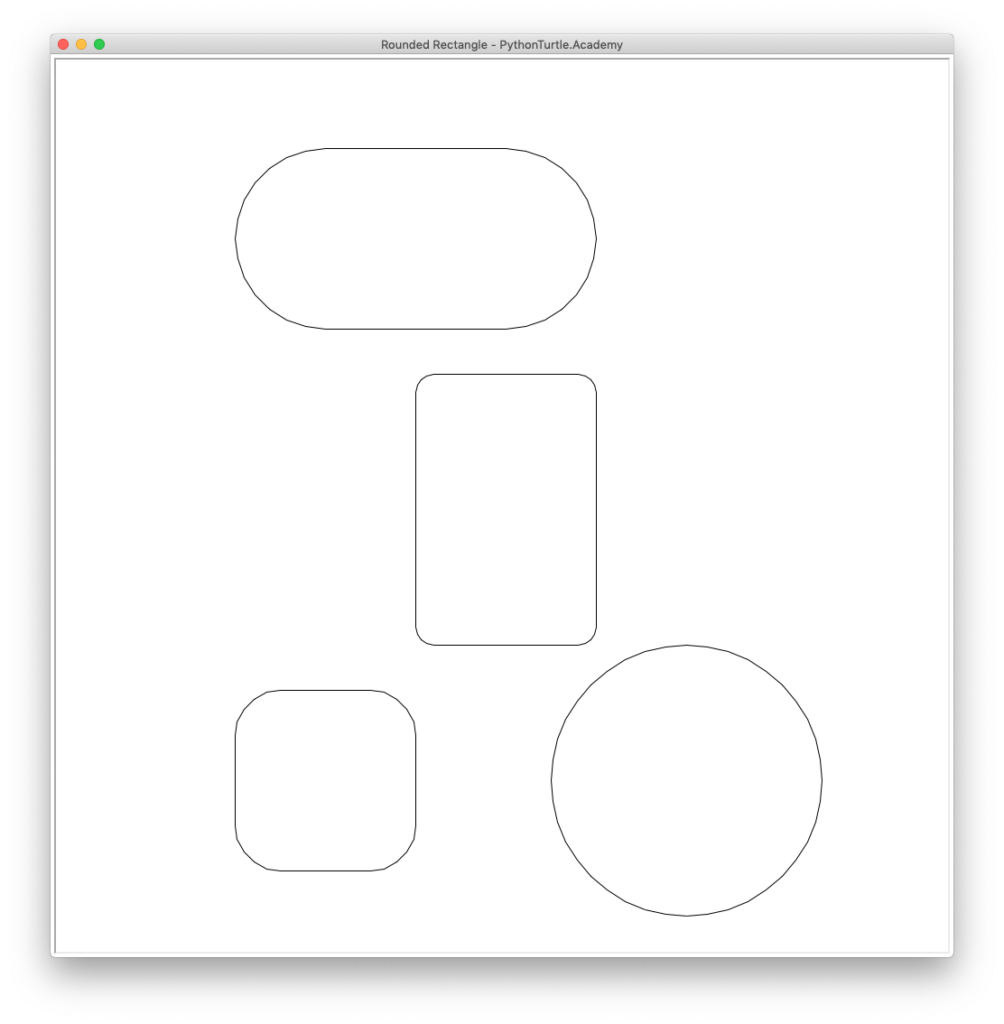
round_rectangle(0,0,200,300,20)    
round_rectangle(-100,300,400,200,100)    
round_rectangle(200,-300,300,300,150)
round_rectangle(-200,-300,200,200,50)        

It draws the following shape:

Round Rectangle or Square with Python Turtle

Tuesday, August 11, 2020

Python turtle set start position


I'll give you my solution for starting at the top left of the window and you can adjust it to your needs:
 
 
from turtle import Turtle, Screen

TURTLE_SIZE = 20

screen = Screen()

yertle = Turtle(shape="turtle", visible=False)
yertle.penup()
yertle.goto(TURTLE_SIZE/2 - screen.window_width()/2, screen.window_height()/2 - TURTLE_SIZE/2)
yertle.pendown()
yertle.showturtle()

screen.mainloop()


The turtle's first appearance should be at the top left of the window.


Python turtle, change start position:
import turtle
a = turtle.Turtle()      #instantiate a new turtle object called 'a'
a.hideturtle()           #make the turtle invisible
a.penup()                #don't draw when turtle moves
a.goto(-200, -200)       #move the turtle to a location
a.showturtle()           #make the turtle visible
a.pendown()              #draw when the turtle moves
a.goto(50, 50)           #move the turtle to a new location
The turtle becomes visible and starts drawing at position -200, -200 and goes to 50, 50.

Introduction to Keras and TensorFlow for Training Deep Learning Classifiers

 ### Introduction to Keras and TensorFlow for Training Deep Learning Classifiers **Keras and TensorFlow** are powerful tools in the realm of...